
 Try the free Voice Typing Speak and watch your words appear as text in real time. No signup.
Google Docs has a free speech to text feature built in, and most people never open it. Once you know where it lives, you can draft notes, essays and reports by talking. This guide shows you how to turn it on, which commands to use, and what to do when it refuses to work.
How to turn on voice typing in Google Docs
The steps are the same on every computer.
- Open your document. Go to docs.google.com in Chrome, Edge or Safari and open a Google Doc. You need permission to edit it.
- Click where the text should go. Put your cursor in the document at the spot where you want your words to appear.
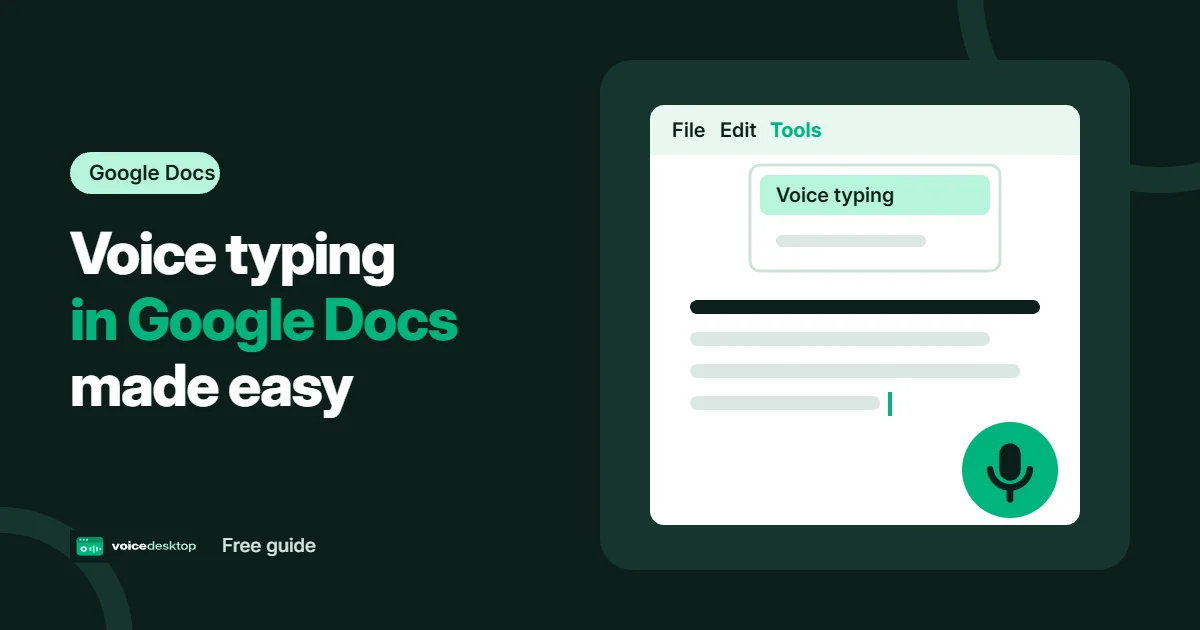
- Open voice typing. Go to Tools > Voice typing. A small microphone box appears next to your document.
- Allow the microphone. Click the microphone. If your browser asks for permission, choose Allow.
- Start talking. When the microphone turns red, speak at a normal pace and volume. Your words appear as you talk.
- Stop when you are done. Click the microphone again, or say “stop listening”.
You can also open it with a shortcut. See the table below for the keys. Made a mistake? Click on it and fix it with your keyboard, then click back where you were. You do not need to turn the microphone off first.
Voice typing on Windows, Mac and Chromebook
The feature looks the same everywhere. What changes is the shortcut and where you allow the microphone.
| Computer | Shortcut | Microphone setting |
|---|---|---|
| Windows 11 | Ctrl + Shift + S | Settings > Privacy & security > Microphone |
| Mac | Cmd + Shift + S | System Settings > Privacy & Security > Microphone |
| Chromebook | Ctrl + Shift + S | Settings > Privacy and security > Privacy controls > Microphone access |
On Windows, also turn on Let desktop apps access your microphone, because Chrome and Edge count as desktop apps. On a Mac, make sure your browser is switched on in the list, then quit it fully and open it again. Some Chromebooks also have a physical microphone switch, so check that too.
Google Docs voice commands
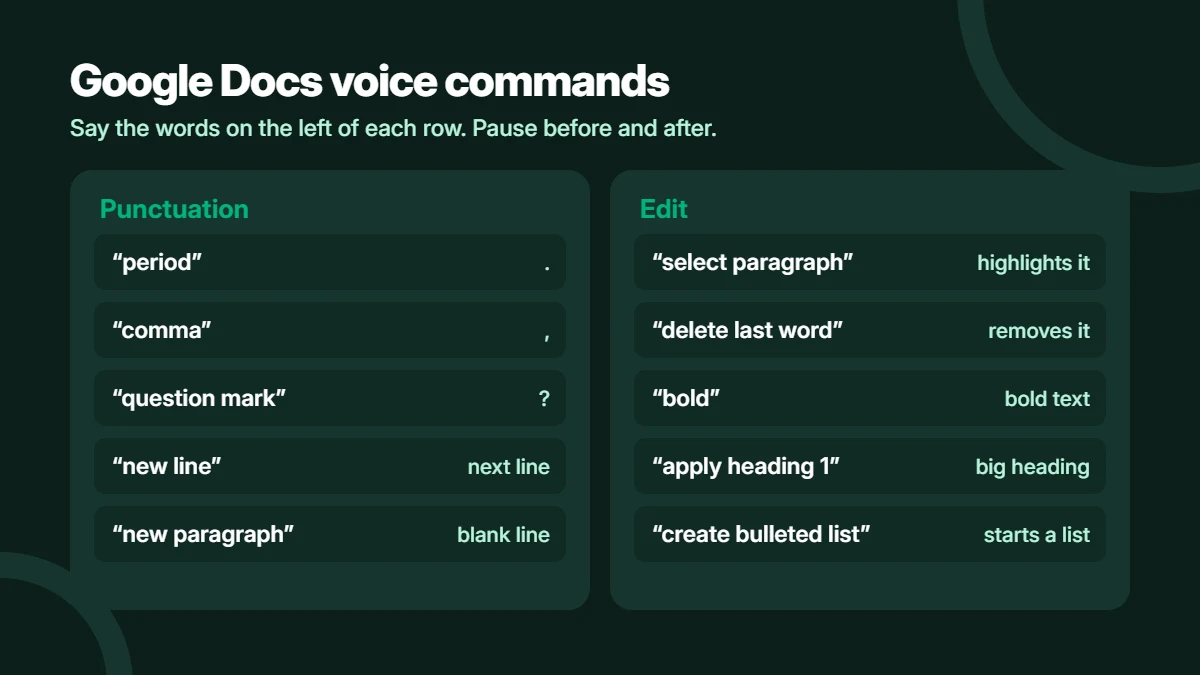
Voice commands let you punctuate, format and edit without touching the keyboard. They work only when your Google account and your document are both set to English. Pause briefly before and after each command so Docs does not type it as a normal word.
| Say this | What happens |
|---|---|
| “period”, “comma”, “question mark” | Adds the punctuation mark |
| “new line” or “new paragraph” | Moves to a new line or paragraph |
| “select paragraph” or “select all” | Highlights that text |
| “select last word” | Highlights the word before the cursor |
| “delete last word” | Removes the previous word |
| “bold”, “italics”, “underline” | Formats the selected text |
| “apply heading 1” | Turns the line into a heading |
| “create bulleted list” | Starts a bulleted list |
| “go to end of document” | Moves the cursor to the end |
| “stop listening” | Turns voice typing off |
| “undo” | Reverses the last command |
| “voice commands list” | Shows every command |
After “stop listening”, say “resume” to pick up at the end of the paragraph. If you want a full comparison of dictation on your computer, read our guide on how to type with your voice.
Why is voice typing greyed out?
If Voice typing is grey or missing from the Tools menu, the problem is usually the document or the browser, not your microphone. Check these in order.
- You cannot edit the file. In view only or comment only mode, ask the owner for edit access.
- It is not a real Google Doc. PDF previews will not work. If you opened a Word file, go to File > Save as Google Docs and try the new copy.
- Your browser is not supported or is out of date. Update Chrome, Edge or Safari. Firefox is not on the supported list.
- Your administrator turned it off. This is common on school and work accounts. Try a personal Google account. If it works there, ask your administrator for help.
Voice typing not working? Try these fixes
If the option opens but no words appear, work through this list.
- Allow the microphone for Docs. Click the icon to the left of the address bar, set Microphone to Allow, then reload the page.
- Check your computer settings. Use the paths in the table above, then restart your browser.
- Pick the right microphone. In Chrome, go to Settings > Privacy and security > Site settings > Microphone and choose your device. Unused Bluetooth headsets are a common cause.
- Test the microphone. Use our free mic test to see if your computer can hear you at all.
- Close other apps using the mic. Zoom, Teams and similar apps can hold on to it.
- Rule out extensions. Open the document in a private window. If voice typing works there, turn your extensions off one at a time.
- Restart your computer. It clears anything that is still stuck.
Seeing “We’re having trouble hearing you”? Move somewhere quieter, raise your input volume or plug in a headset. If no app can hear you, our guide on why your microphone is not working covers more fixes, and Windows users can follow the Windows 11 microphone guide.
Tips for better results
- Use a headset or sit close to your microphone.
- Speak in short, clear phrases at a steady pace.
- Work in a quiet room and turn off fans or music.
- Write first and edit later. Fixing every word as you go slows you down.
- Pick your language from the list in the microphone box before you start.
Need voice typing outside Google Docs?
Voice typing lives inside Docs and works only there. It is no help when you want to write an email, fill in a form or post on a website. For that, try our free Voice Typing tool. Open it in Chrome or Edge, press the mic button and talk. Then copy your text into any website or app, or download it.
| Google Docs voice typing | voicedesktop Voice Typing | |
|---|---|---|
| Cost | Free | Free |
| Account | Google account | No signup |
| Where your text goes | Into the open document | Copy it anywhere |
| Browsers | Chrome, Edge, Safari | Chrome, Edge |
| Formatting commands | Yes, in English | Basic punctuation |
Frequently asked questions
Is Google Docs voice typing free?
Yes. Voice typing comes with Google Docs at no extra cost. You only need a Google account and a working microphone.
Which browsers support Google Docs voice typing?
Google lists the latest versions of Chrome, Edge and Safari. Firefox is not on the list, so switch browsers if you normally use it.
What is the keyboard shortcut for voice typing?
Press Ctrl + Shift + S on Windows or a Chromebook, or Cmd + Shift + S on a Mac. The shortcut is most reliable in Chrome. If nothing happens, use the Tools menu.
Can I use voice typing in the Google Docs mobile app?
The Tools menu option is for computers. In the Docs app on a phone, tap the microphone on your keyboard instead. That uses your phone keyboard dictation, so the Google Docs voice commands will not work.
Why does voice typing keep stopping?
It can switch off after a long pause, or when you click into another tab or app. Stay on the Docs tab and click the microphone to start again. Saying “stop listening” turns it off on purpose.
Does Google Docs voice typing add punctuation by itself?
Plan on saying it out loud. Say “period”, “comma” or “question mark” as you speak. Punctuation commands work only when your account language and document language are both English.
Can Google Docs transcribe an audio file?
No. Voice typing listens to your microphone, and there is no way to upload a recording. To turn a saved recording into text, use our free audio to text tool, which works with English audio.
Ready to try it?
Our Voice Typing tool is free, needs no signup and lets you copy your words into any website or app.
Open Voice Typing