
 Try the free Voice Typing Speak and watch your words appear as text in real time. No signup.
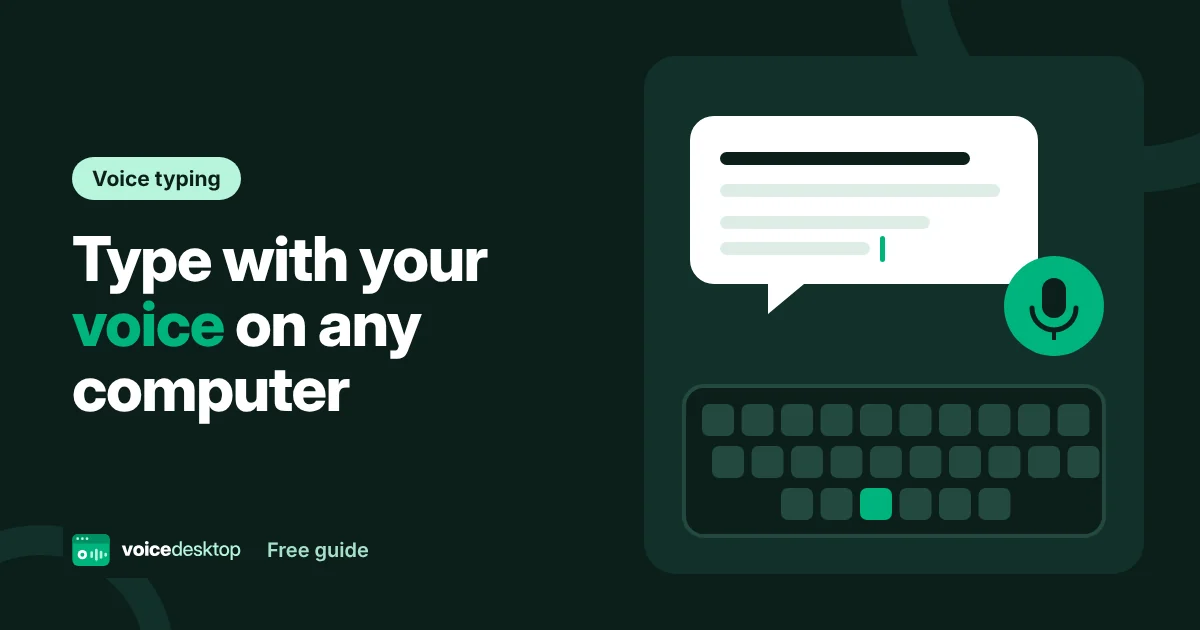
 Most people speak at around 130 words per minute but type at about 40. Voice typing closes that gap. Once you get used to it, you can draft emails, essays and notes far faster than you can type them. This guide shows the quickest ways to type with your voice on any computer.
The quickest way: voice typing in your browser
If you use Chrome or Edge, you can start in seconds without changing any settings.
- Open the free voice typing tool.
- Choose your language and microphone.
- Press the green mic button and allow microphone access.
- Start talking. Your words appear in the text box as you speak.
- Press the button again to stop, then copy or download your text.
It works on Windows, Mac, Chromebook and Android, and it does not need an account.
Voice commands for punctuation
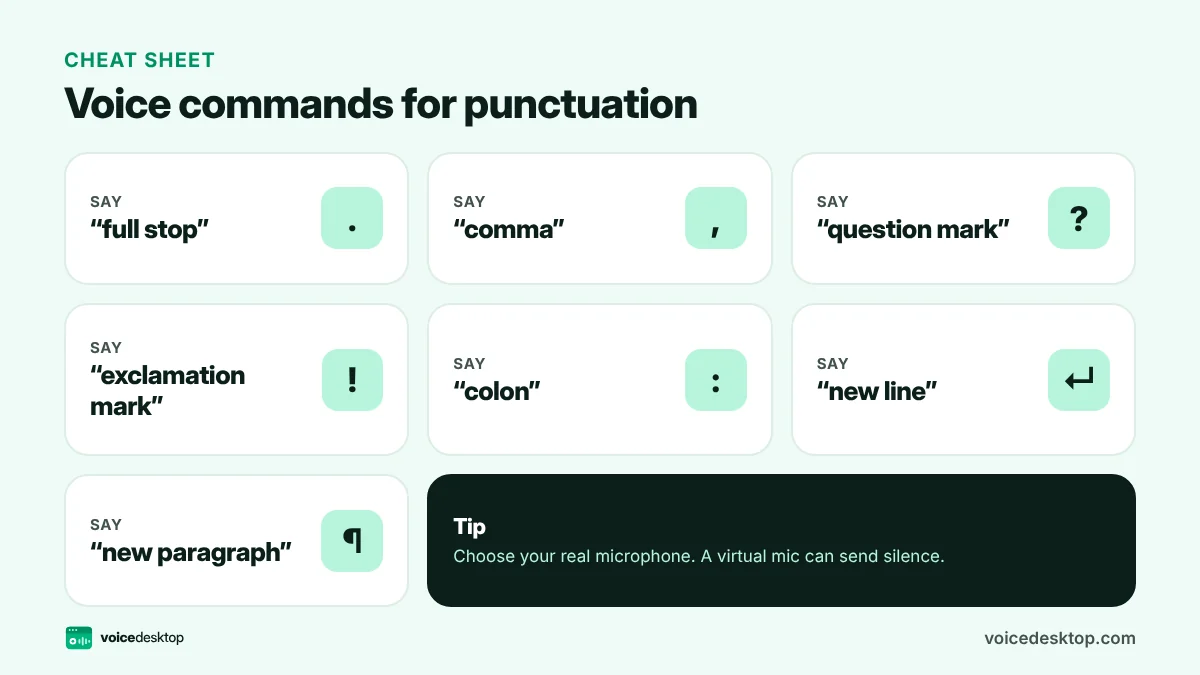
Speaking punctuation feels strange for the first few minutes, then it becomes natural. In the voicedesktop voice typing tool, with English selected, you can say:
| Say | You get |
|---|---|
| “full stop” or “period” | . |
| “comma” | , |
| “question mark” | ? |
| “exclamation mark” | ! |
| “colon” | : |
| “new line” | a line break |
| “new paragraph” | a blank line |
The first letter of each sentence is capitalised for you.
Voice typing on Windows 11
Windows has voice typing built in.
- Click in any text box, such as Word, Notepad or an email.
- Press Win + H.
- Start speaking. Press Win + H again to stop.
You can turn on automatic punctuation from the settings icon in the voice typing bar.
Dictation on a Mac
- Open System Settings, then Keyboard, and turn on Dictation.
- Click in any text box.
- Press the dictation shortcut, usually the microphone key or pressing the Fn or Globe key twice. You can also choose Edit then Start Dictation.
- Speak, then press the shortcut again or click Done.
Voice typing in Google Docs
- Open a document in Google Chrome.
- Choose Tools, then Voice typing, or press Ctrl + Shift + S (Cmd + Shift + S on a Mac).
- Click the microphone and start speaking.
Google Docs voice typing only works in Chrome.
Which method is best?
| Method | Works on | Best for |
|---|---|---|
| voicedesktop voice typing | Chrome and Edge on any computer | Quick drafts you copy anywhere |
| Windows voice typing | Windows 11 | Typing straight into any Windows app |
| Mac Dictation | Mac | Typing straight into any Mac app |
| Google Docs voice typing | Chrome | Writing long documents in Docs |
A note on privacy
Live voice typing in browsers uses the speech service built into the browser. In Chrome and Edge, that service may send your audio to Google or Microsoft to recognise the words. voicedesktop never receives your audio or text.
If you need everything to stay on your device, record yourself with the voice recorder and then use the audio to text converter. Both run fully in your browser.
Tips for accurate voice typing
- Use a decent microphone. A headset mic is much more accurate than a laptop mic across the room. Check yours with the mic test.
- Choose the right microphone. If your computer has a virtual mic, such as NVIDIA Broadcast, make sure the real mic is selected, or voice typing will hear nothing.
- Speak in full phrases. The speech service uses context, so complete phrases work better than single words.
- Pick your accent. English (UK), English (India) and English (Australia) can be more accurate for those accents than English (US).
- Edit as you go. Click anywhere in the text to fix a word, then keep talking.
- Reduce background noise. Turn off music, fans and the TV.
Who uses voice typing?
- Writers get first drafts down quickly and edit later.
- Students dictate essays and notes.
- Busy professionals reply to emails between meetings.
- People with RSI, dyslexia or limited mobility find it easier than the keyboard.
- Language learners check how well they are understood.
Frequently asked questions
Why does voice typing show “Listening” but type nothing?
The wrong microphone is usually selected. In the voicedesktop tool, choose your real microphone from the Microphone list. A virtual mic that sends silence is the most common cause.
Does voice typing work in Safari or Firefox?
Live voice typing needs a browser with full speech recognition support, which today means Chrome or Edge. In other browsers, record your voice and use audio to text instead.
Is voice typing free?
Yes. The voicedesktop tool is free with no word limit, and the built in options on Windows, Mac and Google Docs are free too.
Ready to try it?
The Voice Typing is free, needs no signup and runs privately in your browser.
Open Voice Typing