
 Try the free Mic Test Check your microphone with a live meter and a quick playback test. No signup.
 Few things are more stressful than joining a call and realising nobody can hear you. The good news is that a silent microphone on Windows 11 almost always comes down to one of a handful of causes. Work through this checklist from the top. Most people are fixed by step three.
First, find out where the problem is
Before changing any settings, run a quick online mic test. It takes about ten seconds and tells you which side the problem is on:
- The meter moves: your microphone and Windows are fine. The problem is inside the app you are using, such as Zoom, Teams or Discord. Skip to fix 7.
- The meter does not move: the problem is in Windows or the hardware. Start with fix 1.
- The browser says access is blocked: go straight to fix 2.
The test also lists every microphone your computer can see, which is very useful for fix 3.
1. Check the obvious hardware switches
It sounds simple, but it catches everyone at some point.
- Many headsets have a mute switch on the cable or a button on the ear cup.
- Some laptops have a mic mute key on the keyboard, often with a light that turns on when muted.
- Unplug USB microphones and plug them into a different port. Avoid unpowered USB hubs.
- For Bluetooth earbuds, disconnect and reconnect them. Make sure they are connected as a headset, not only as headphones.
2. Allow microphone access in Windows privacy settings
Windows can block apps from using the microphone even when everything else is fine.
- Open Settings with Win + I.
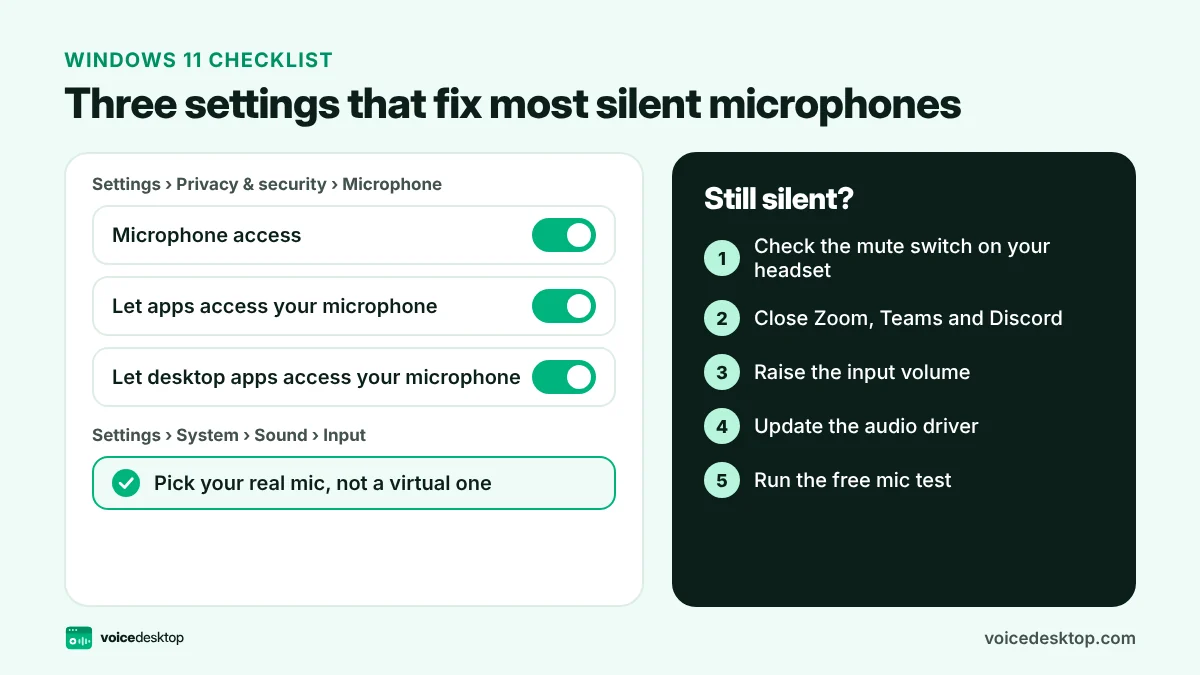
- Go to Privacy & security, then Microphone.
- Turn on Microphone access.
- Turn on Let apps access your microphone.
- Scroll down and turn on Let desktop apps access your microphone. Browsers like Chrome and Edge, and apps like Zoom, count as desktop apps.
If you use a website, also check the browser. Click the icon to the left of the web address and make sure Microphone is set to Allow.
3. Choose the right input device
Windows often picks the wrong microphone, for example a webcam mic or a virtual mic from software like NVIDIA Broadcast.
- Open Settings, then System, then Sound.
- Under Input, choose the microphone you actually want to use.
- Click it to open its properties and check that Input volume is not at zero.
- Speak and watch the Test your microphone bar.
Virtual microphones from apps such as NVIDIA Broadcast, Krisp or OBS only work while that app is running and set up. If one of them is selected as the default, you may get complete silence.
4. Raise the input volume
A microphone that is technically working but set to a very low level can seem silent. In Settings, System, Sound, select your microphone and set Input volume to around 75 to 90. Then run the mic test again and aim for the meter to sit in the middle when you speak normally.
5. Run the Windows audio troubleshooter
Windows 11 has a built in recording troubleshooter.
- Open Settings, then System, then Troubleshoot, then Other troubleshooters.
- Find Recording Audio or Audio and click Run.
- Follow the prompts and choose your microphone when asked.
On newer versions of Windows 11, this opens the Get Help app, which walks you through the same checks.
6. Update or reinstall the audio driver
A broken driver can stop a microphone from appearing at all.
- Right click the Start button and choose Device Manager.
- Expand Audio inputs and outputs.
- Right click your microphone and choose Update driver, then Search automatically for drivers.
- If that does not help, right click it again, choose Uninstall device, then restart your PC. Windows reinstalls the driver on startup.
For laptops, the manufacturer’s support site (Dell, HP, Lenovo, ASUS and so on) often has a newer audio driver than Windows Update.
7. Close apps that lock the microphone
Some apps grab the microphone and do not let anything else use it. Zoom, Teams, Discord, Skype, OBS and game launchers are common culprits.
- Close them fully, including from the system tray near the clock.
- Then open Sound settings, choose More sound settings, open the Recording tab, select your mic, choose Properties, then Advanced, and untick Allow applications to take exclusive control of this device.
8. Check the settings inside the app
If the mic test works but one app does not, the app is using the wrong input. Open the audio settings inside that app and choose the same microphone that worked in the test. In Zoom this is under Settings then Audio. In Teams it is under Settings then Devices.
9. Restart, then test again
When you have changed several settings, a full restart clears stuck audio services. After restarting, run the mic test one more time and record a five second clip to hear how you sound.
Still not working?
If none of the fixes help and the microphone does not appear anywhere, the hardware may be faulty. Try the microphone on another computer, or try a different microphone on your computer. If a cheap USB headset works when your built in mic does not, the internal mic or its cable is the likely cause.
Frequently asked questions
Why does my mic work in one app but not another?
Each app chooses its own input device. Open the audio settings in the app that is silent and pick the microphone that works elsewhere.
Is it safe to test my microphone online?
With voicedesktop, yes. The mic test analyses your audio inside your browser and never uploads it.
My mic sounds quiet and full of hiss. What can I do?
Move closer to the mic, raise the input volume a little, and reduce background noise. If you record with our voice recorder, switch noise reduction to Standard or Strong after recording to remove hiss and hum.
Ready to try it?
The Mic Test is free, needs no signup and runs privately in your browser.
Open Mic Test