
 Try the free Mic Test Check your microphone with a live meter and a quick playback test. No signup.
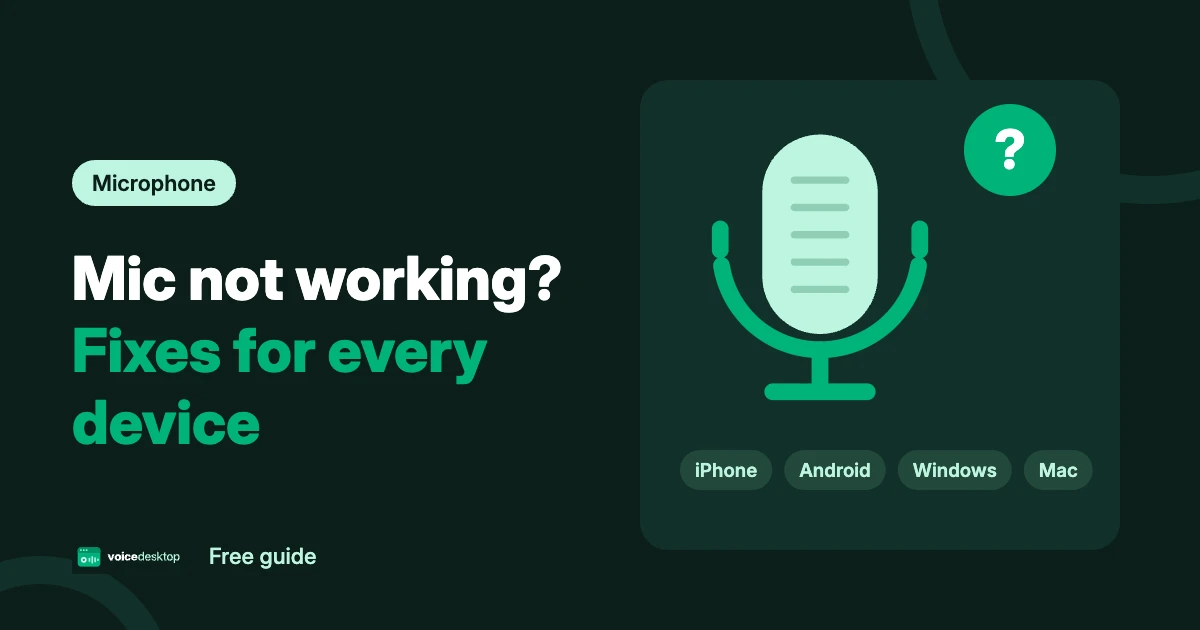
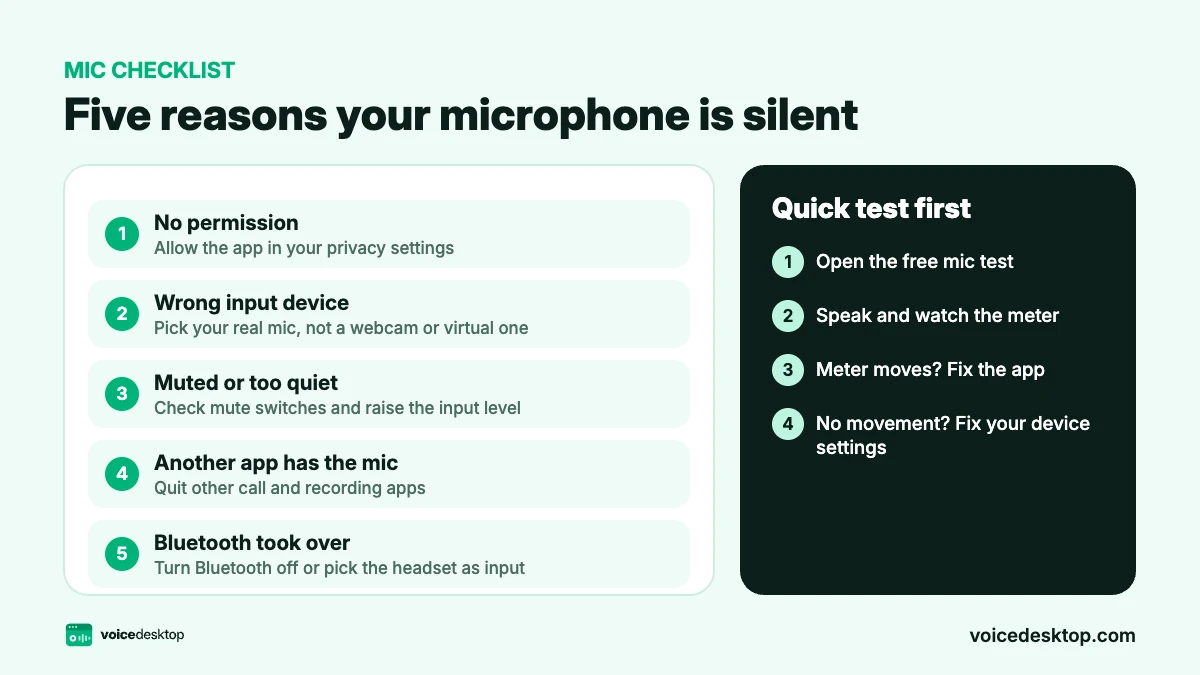
 A microphone usually stops working for one of five reasons: the app has no permission to use it, the wrong input device is selected, it is muted or turned right down, another app is holding on to it, or a Bluetooth headset is connected and has taken over. Run a quick mic test to see where the problem is, then follow the fixes for your device below.
Start with a 10 second mic test
Before you change any settings, open the free online mic test and say a few words. The result tells you where to look:
- The meter moves: your microphone and device are fine. The problem is inside the app you are using. Jump to fixes for call apps.
- The meter does not move: the problem is a setting on your device or the hardware. Go to the section for your device.
- The browser says access is blocked: see allow microphone access in your browser.
The 5 most common reasons a microphone stops working
- No permission. Phones and computers block the mic for each app until you allow it.
- Wrong input device. Your device is listening to a webcam, a virtual device or a headset you are not wearing.
- Muted or too quiet. A mute button, a mute switch on the headset cable or an input level near zero.
- Another app has the mic. Call apps and recorders can lock the microphone so nothing else can use it.
- Bluetooth took over. Connected earbuds or a car system quietly become the microphone.
iPhone microphone not working
- Allow the app. Go to Settings > Privacy & Security > Microphone and switch on the app you are using.
- Turn off Bluetooth. Open Control Centre and turn Bluetooth off for a moment. Connected AirPods, a speaker or your car can take over the microphone.
- Test with Voice Memos. Record a few seconds in Voice Memos. If it records clearly, your iPhone is fine and the problem is the app.
- Clear the openings. Take off the case and any screen protector that covers the bottom edge, then gently clean the mic holes with a soft, dry brush.
- Restart and update. Restart the phone, then check Settings > General > Software Update.
If Voice Memos is silent too, and video from both cameras has no sound, the microphone hardware may be faulty. Contact Apple Support or an authorised repair shop. Need a transcript of a memo instead? See our iPhone voice memo to text guide.
Android microphone not working
- Check the app permission. Go to Settings > Apps, choose the app, then Permissions > Microphone and pick Allow only while using the app.
- Turn on microphone access. On Android 12 and later, swipe down to Quick Settings and make sure the Microphone access tile is on. When it is off, every app hears silence.
- Disconnect Bluetooth and try again.
- Test it. Record a short clip in your phone’s recorder app or with our online voice recorder. If that works, the problem is the app.
- Clean the mic hole, restart and update. Then check for a system update in Settings.
Still silent? Start the phone in safe mode, which turns off downloaded apps. If the mic works there, a recently installed app is blocking it. The steps for safe mode vary by brand, so search for your phone model.
Windows microphone not working
On Windows 11, check Settings > Privacy & security > Microphone and make sure all three switches are on, including Let desktop apps access your microphone. Then go to Settings > System > Sound, pick your real microphone under Input and raise the input volume.
On Windows 10, the same switches are in Settings > Privacy > Microphone, and the input device is in Settings > System > Sound. If that does not help, our full Windows 11 microphone guide covers drivers, the troubleshooter and apps that lock the mic.
Mac microphone not working
- Allow the app. Open System Settings > Privacy & Security > Microphone and switch on the app.
- Pick the right input. In System Settings > Sound > Input, select your microphone, raise the input volume and watch the input level move as you speak.
- Find what is using the mic. An orange dot in the menu bar means an app is using the microphone. Open Control Centre to see which one, then quit it.
- Check USB mics. Try another port or cable and avoid unpowered hubs.
- Restart your Mac and test again.
AirPods or Bluetooth headset microphone not working
- Charge them. A low battery often cuts the microphone before the sound.
- Check the mic setting. On iPhone, go to Settings > Bluetooth, tap the info button next to your AirPods, then Microphone, and choose Automatically Switch AirPods.
- Choose the headset as input on a computer. On Windows, a Bluetooth headset can appear twice. Choose the one called Headset or Hands-Free, not Headphones. Sound quality drops while the mic is on. That is normal for Bluetooth.
- Clean the mesh at the bottom of each earbud with a dry, soft brush.
- Forget and pair again. Remove the device in Bluetooth settings, then pair it fresh. For AirPods, put them in the case, open the lid and hold the setup button for about 15 seconds until the light flashes amber, then white.
Fix it in Zoom, Teams, Google Meet and Discord
If the mic test works but people still cannot hear you, the call app is using the wrong device or has you muted.
- Zoom: go to Settings > Audio, choose your microphone and click Test Mic. In a meeting, Alt + A on Windows or Cmd + Shift + A on Mac toggles mute.
- Microsoft Teams: go to Settings > Devices, pick your microphone and use Make a test call.
- Google Meet: click the site settings icon to the left of the address bar and allow the microphone. Then open More options > Settings > Audio and choose your mic.
- Discord: go to User Settings > Voice & Video, pick the input device and use the mic test. Lower the input sensitivity if your voice keeps cutting out.
Close other call apps before you join. Only one app can sometimes use the microphone at a time.
Allow microphone access in your browser
- Chrome and Edge: click the site settings icon to the left of the address bar, switch Microphone on and reload the page.
- Safari on Mac: open Safari > Settings > Websites > Microphone and set the site to Allow.
- Firefox: click the permissions icon in the address bar and remove the block.
- Safari on iPhone: tap the aA button in the address bar, then Website Settings > Microphone.
Your browser also needs permission from the system. On Windows and Mac, check that your browser is switched on in the microphone privacy list.
When it is a hardware problem
Try your microphone on another device, and another microphone on your device. If the mic fails everywhere, the mic is faulty. If every mic fails on one device, the problem is that device.
For wired headsets on laptops with a single combined headphone jack, you need a plug with three rings (TRRS) or a splitter. A plug with two rings only carries sound out, so the mic never connects.
Frequently asked questions
Why is my mic not working but my sound is?
Sound output and microphone input are separate settings. Your speakers can work perfectly while an app has no permission to use the mic, or while the wrong input device is selected. Check the app permission and the input device first.
How do I know if my microphone is working?
Open a free online mic test and speak. If the level meter moves and you can hear yourself on playback, the microphone and your device are fine, and any problem is inside the app you are using.
Why does my mic work in one app but not another?
Each app needs its own microphone permission and has its own choice of input device. Allow the app in your privacy settings, then pick the right microphone in the app’s audio settings.
Why is my microphone so quiet?
The input volume is usually set too low, or you are too far from the mic. Raise the input level in your sound settings, stay about a hand’s width from a headset or USB mic, and turn off automatic volume adjustment in your call app if it keeps dropping.
Can a microphone stop working after an update?
Yes. System and app updates can reset privacy permissions, change the default input device or install a faulty driver. After an update, check the microphone permission and input device again before anything else.
Ready to try it?
The Mic Test is free, needs no signup and runs privately in your browser.
Open Mic Test